Audio Formats and Bitrates Explained for Instagram
By the SaveInstAudio team · Published · 6 min read
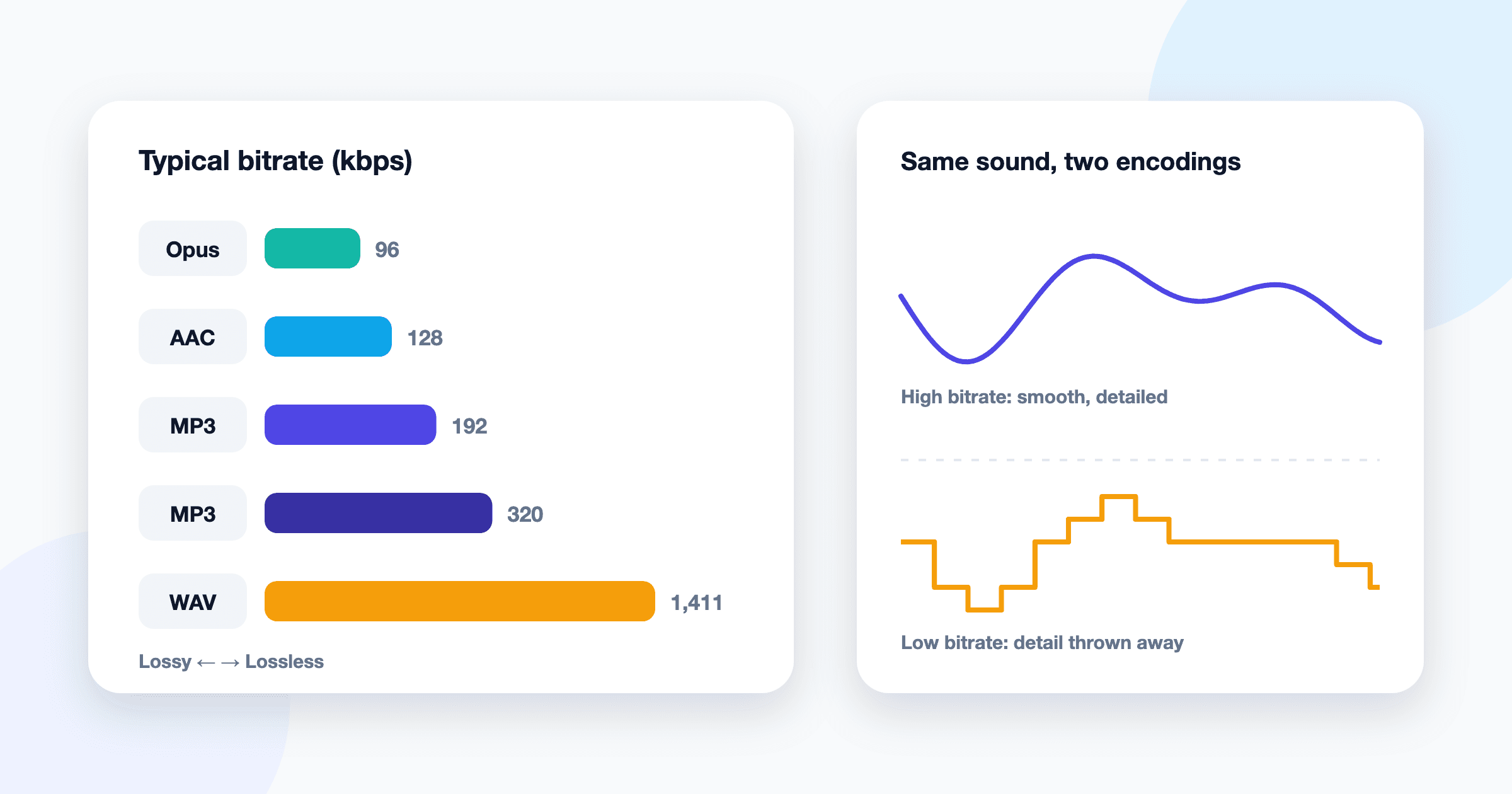
If you’ve ever saved a sound from a Reel and wondered whether “MP3” means it sounds worse, or whether you should hunt for a WAV version instead, you’re in the right place. Audio file jargon is confusing because a few terms get used loosely. This guide walks through what the numbers mean, how the common formats differ, and what actually matters when the source is an Instagram post.
The Two Numbers That Describe Digital Audio
Bitrate (kbps)
Bitrate is how much data is used to represent one second of sound, measured in kilobits per second (kbps). More bits per second generally means the encoder has more room to keep detail, but the relationship isn’t linear, and it depends heavily on the format.
For reference, uncompressed CD-quality stereo audio runs at about 1,411 kbps. A typical MP3 sits somewhere between 128 and 320 kbps. That gap is the whole point of compression: modern encoders can throw away a large share of the data while keeping most of what you can hear.
Sample Rate (kHz)
Sample rate is how many times per second the sound wave is measured. The two you’ll see most are 44.1 kHz, the CD standard, and 48 kHz, which is common for video. Both capture the full range of human hearing, so going higher rarely makes an audible difference for listening. Sample rate is a separate setting from bitrate: a file can be 48 kHz and still be heavily compressed.
Bit depth (16-bit, 24-bit) is a third term you’ll see on uncompressed files. It describes the dynamic range of each sample, and it matters mostly in recording and mixing, not in everyday playback.
Lossy vs. Lossless
Every audio format falls into one of two camps.
- Lossless formats keep every bit of the original. WAV and AIFF store audio uncompressed; FLAC and ALAC compress it the way a ZIP file does, so nothing is lost when it’s decoded.
- Lossy formats permanently discard information the encoder judges you’re unlikely to notice, such as very quiet sounds masked by louder ones or extreme high frequencies. MP3, AAC and Opus are all lossy.
Lossy isn’t a dirty word. At sensible bitrates, most people can’t reliably tell a good lossy file from the lossless original on normal headphones or phone speakers. The trade-off shows up in edge cases: heavy processing, repeated re-encoding, or very low bitrates where cymbals turn swirly and vocals sound “underwater.”
MP3, AAC/M4A, WAV and Opus Compared
| Format | Type | Typical bitrate | Strengths | Weak spots | | --- | --- | --- | --- | --- | | MP3 | Lossy | 128–320 kbps | Plays on virtually everything, every editor imports it | Less efficient than newer codecs at low bitrates | | AAC / M4A | Lossy | 96–256 kbps | Better quality per kbps than MP3, standard for video and Apple devices | Some older hardware and a few apps handle it poorly | | WAV | Lossless, uncompressed | About 1,411 kbps at CD quality | No generation loss while editing, universally supported in pro tools | Huge files, no real benefit if the source was already lossy | | Opus | Lossy | 32–160 kbps | Excellent quality at low bitrates, great for voice and streaming | Patchy support in consumer players and some editors |
A quick note on naming: M4A is a container, and the audio inside is almost always AAC. Likewise, MP4 video files usually carry their soundtrack as AAC. So when people say “M4A” and “AAC” interchangeably, they mean roughly the same thing.
CBR vs. VBR
Encoders can spend their bit budget in two ways.
- Constant bitrate (CBR) uses the same number of bits every second, whether the track is silent or packed with drums. It’s predictable, which is handy for streaming systems and some older hardware.
- Variable bitrate (VBR) spends more bits on complex passages and fewer on simple ones. The result is usually better quality for the same file size, or a smaller file for the same quality.
For a saved sound you plan to listen to or edit, high-quality VBR is generally the better choice. Modern players, phones and editing apps handle VBR MP3s without trouble. Older hardware players that misreport track length are the rare case where CBR is more convenient.
Why You Can’t “Upgrade” Instagram Audio
Here’s the part that trips people up. When someone uploads a Reel, Instagram re-encodes the audio into its own lossy format, typically AAC inside an MP4 file, at whatever quality it chooses. Whatever detail the uploader’s original file had beyond that is gone from Instagram’s copy.
Converting that audio to WAV, FLAC or a 320 kbps MP3 doesn’t bring anything back. It just stores the same already-compressed sound in a bigger container. It’s like rescanning a blurry photo at higher resolution: the blur stays. Each additional lossy re-encode can even add a small amount of new artifacts, which is why you want as few lossy steps as possible.
The practical upshot: the best version of an Instagram sound you can get from the post is the one Instagram stored. If you need something cleaner, the answer is the original release on a music store or the creator’s own files, not a different format.
Why SaveInstAudio Outputs MP3
When you use our Instagram audio downloader, you get an MP3. That’s a deliberate choice for compatibility. MP3 opens in every phone, laptop, browser, video editor and DJ app we know of, with no plugins and no “unsupported file” errors halfway through a project.
We encode at high-quality VBR, so the MP3 preserves what Instagram delivered as faithfully as the format allows. There’s no bitrate menu because picking a higher number wouldn’t add quality that isn’t in the source, and a lower one would only make it worse. The file you get reflects the post’s audio, capped by what Instagram stored.
Practical Guidance by Use Case
Editing Videos
Import the MP3 directly into your editor. CapCut, InShot, Premiere, DaVinci Resolve and most others accept it without conversion. If your editor struggles with seeking or sync, converting to WAV before importing can help, since uncompressed audio is easier for software to scrub through. It won’t improve the sound, but it can make timeline editing smoother. Our guide to adding Instagram audio to CapCut and InShot covers the import steps.
DJing and Mixing
DJ software handles MP3 well, and it’s one of the most common formats in DJ libraries. Two tips: analyze the track in your software before using it so beat grids and key detection are ready, and avoid stacking pitch and tempo changes on a heavily compressed source, since processing exaggerates artifacts. For a real gig, buy the official release if one exists.
Practice and Learning
For dance routines, instrument practice or language learning, MP3 is ideal. Load it into an app that can slow playback without changing pitch, loop sections, or set markers. Quality differences between formats simply won’t matter at practice volume.
Archiving
If you’re saving sounds to use later, keep the MP3 as downloaded instead of converting it back and forth. To grab the sound from a specific clip, convert the Reel to MP3 and store it in a dedicated folder.
The Short Version
- Bitrate is data per second; sample rate is measurements per second. Both matter, but neither can exceed the quality of the source.
- Lossless keeps everything; lossy discards what you’re unlikely to hear. At good bitrates, lossy is fine for almost everyone.
- AAC and Opus are more efficient than MP3, but MP3 wins on compatibility.
- VBR usually beats CBR for quality per megabyte.
- Instagram audio is already lossy, so converting it to WAV or a higher bitrate won’t restore anything.
Before you reuse any saved sound publicly, it’s worth reading our overview of copyright basics for reusing Instagram sounds.