Why Can’t I Hear Instagram Reels?
By the SaveInstAudio team · Published · 8 min read
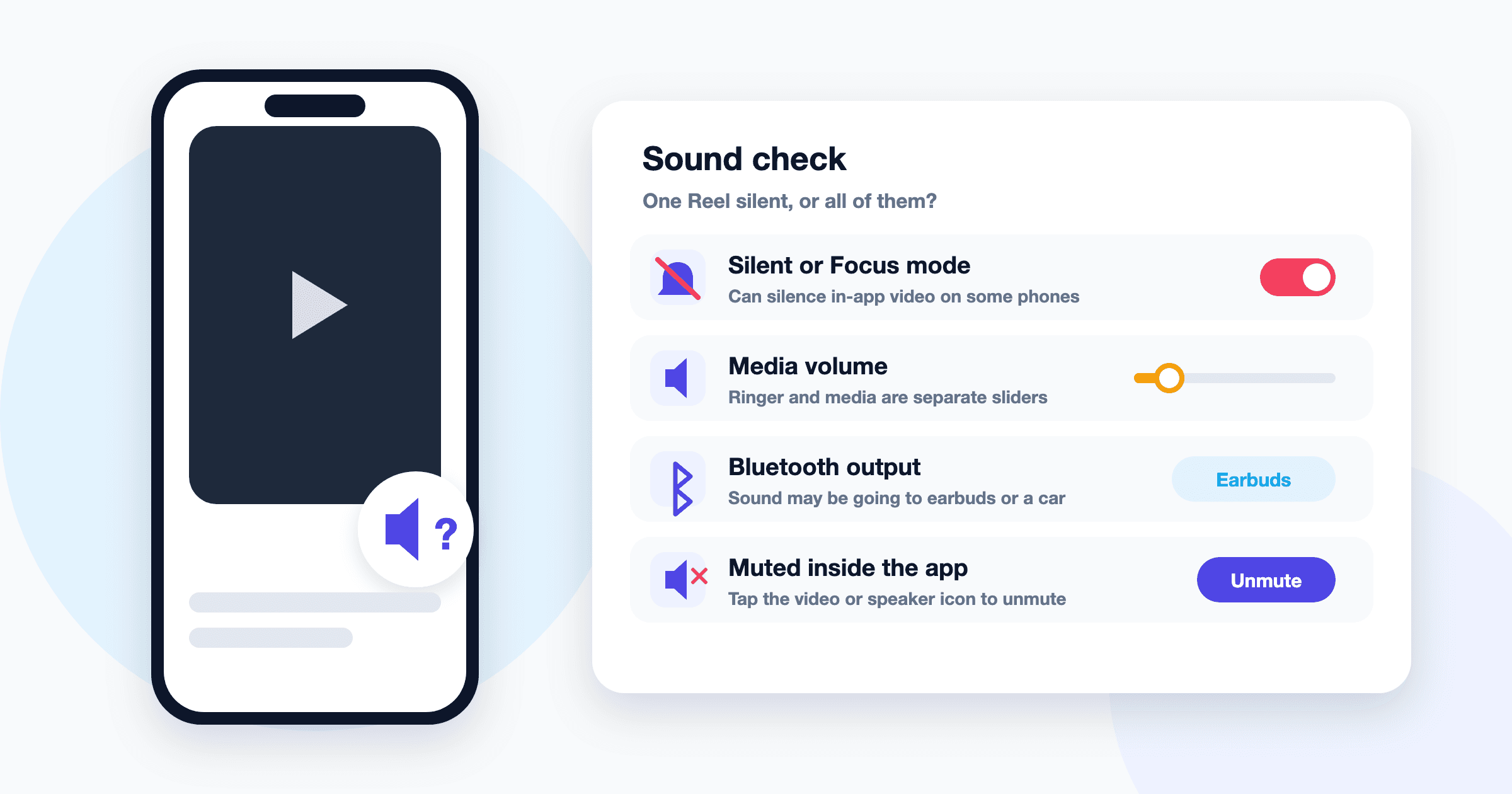
Few things are as quietly maddening as a Reel that moves but makes no sound. The captions scroll, the creator gestures emphatically, and you hear nothing. The instinct is to blame Instagram, yet the culprit is frequently more mundane: a toggle you brushed against, earbuds still connected from their charging case, or a setting switched on months ago and forgotten.
This guide is written for the viewer. Rather than listing fixes at random, it works like a proper diagnosis: narrow the problem first, then test the likeliest causes in a sensible order.
Start with one question: is it one Reel or all of them?
Before touching a single setting, scroll to two or three other Reels from different accounts and listen. This one test splits the problem cleanly in two.
- Only one Reel is silent. Your device is almost certainly fine. The sound was probably removed or restricted on Instagram’s side, often for licensing reasons. That is a separate problem, covered in our guide to fixing “audio not available” on Instagram Reels. If the silent Reel is one you posted yourself, see why your own Instagram Reel has no sound.
- Every Reel is silent. The fault lies somewhere between Instagram’s player and your ears: the app’s mute state, the phone’s volume or mode, an unintended audio route, or the app itself.
A useful third check: play a video in a different app. If that is silent too, Instagram is exonerated and the issue is system-wide.
Quick diagnostic table
| Symptom | Likely cause | Fix | | --- | --- | --- | | One Reel silent, others fine | Audio removed by Instagram | Nothing to fix on your device | | All Reels silent, other apps fine | Instagram’s mute is on | Tap the video or speaker icon | | Silent until you press volume up | iPhone silent mode | Turn silent mode off | | Buttons change ringer, not video | Wrong volume stream | Press volume while a Reel plays | | Every app is silent | Media volume at zero or DND | Raise media volume; check modes | | Sound comes from elsewhere | Bluetooth, AirPlay, or Cast | Switch the audio output | | Faint or one-sided sound | Balance or mono audio | Center the balance | | Audio drops or starts late | Weak connection | Change networks | | Silent only in a browser | Tab muted or sound blocked | Allow sound for the site |
Check Instagram’s own mute state first
Instagram generally keeps a single mute state that carries from one video to the next. If you silenced one Reel, perhaps inadvertently while scrolling in a quiet room, the app tends to remember that choice for everything that follows. This is the most common reason people believe their sound is broken.
- Look for a small speaker icon, usually in a corner of the video. A speaker with a line or an “x” through it means the player is muted.
- Tap the icon, or tap once on the video. In many views a single tap toggles sound, while a long press pauses instead.
- Scroll to the next Reel and confirm that sound carries over.
A counterintuitive detail: videos in the main feed often start muted by design, while the dedicated Reels tab tends to play with sound. If Reels are silent in one place but audible in another, that is default behavior rather than a fault.
Phone settings that silence Reels
iPhone: the ring/silent switch and the Action button
On iPhones with a physical ring/silent switch, flipping it so an orange strip shows puts the phone in silent mode. Newer models replace the switch with a customizable Action button that can toggle silent mode with a press. Either way, it is easy to engage without noticing.
Silent mode is meant for ringtones and alerts, but apps interpret it differently, and some, Instagram among them at various times, treat it as a cue to start videos muted. Pressing volume up while a Reel plays often overrides this, but the cleanest test is to turn silent mode off with the switch, the Action button, or the bell icon in Control Center.
Volume buttons adjusting the wrong thing
Phones juggle several independent volume levels: ringer, notifications, alarms, and media. When nothing is playing, an iPhone’s side buttons may adjust the ringer instead of media, depending on a setting in Sounds and Haptics. The result is a frustrating loop where you press volume up and the Reel stays quiet. Start a Reel first, then press the buttons, and check that the on-screen indicator shows a speaker rather than a bell.
Android: media volume, ringer, and Do Not Disturb
Android separates media from ringer volume even more explicitly. Press a volume button, then tap the small arrow or settings icon on the slider to reveal every stream. If the media slider sits at zero, Reels stay silent no matter how loud your ringtone is.
Do Not Disturb deserves a look too. Most Android phones let media through by default, but some manufacturers and custom rules can attenuate or block it. Focus modes on iPhone mainly silence notifications, yet are worth ruling out if you have configured them heavily. Turn off any active mode and test again.
Accessibility audio settings
Accessibility options can make Reels sound broken when enabled unintentionally. An audio balance slider pushed to one side can leave one ear silent and everything faint; center it. Mono audio rarely causes silence alone, but paired with an uneven balance it can. Paired hearing devices may also claim the audio route, much like earbuds do. On iPhone, look under Accessibility for an Audio or Hearing area; on Android, look for something like “Hearing enhancements,” since labels vary by manufacturer.
When the sound is playing somewhere else
A common idiosyncrasy of modern devices is that audio can be playing perfectly, just not through the speaker in your hand. Many Bluetooth earbuds reconnect the moment their case opens, and some stay connected in a closed case or a pocket. Your phone dutifully routes the Reel’s sound to them, and you hear nothing.
- Bluetooth earbuds or headphones. Check the quick-settings panel and disconnect anything you are not wearing.
- Car audio. The phone may still be paired to a car idling in the driveway.
- Speakers and TVs. AirPlay on iPhone and Cast features on Android can send audio to another room. The media output picker shows the current destination.
- Wired adapters. A USB-C or Lightning adapter plugged in without headphones, or a damaged one, can convince the phone headphones are present. On older phones, lint in the headphone jack can do the same.
Once you reconcile where the phone thinks audio is going with where you want it, the problem usually disappears.
Connection, power, and app-level fixes
Low power, data saver, and weak networks
Battery-saving and data-saving modes, including Instagram’s own data-saving option, change how much media loads ahead of time. Video and audio are also often delivered as separate streams, stitched together by the player. On a congested network or throttled plan, the picture can load while the audio lags or fails. Telltale signs include sound arriving late, cutting out mid-Reel, or working only on some videos. Disable saving modes temporarily, move to stronger Wi-Fi, or toggle airplane mode to force a fresh connection.
Cache, updates, and reinstalling
If every setting checks out and other apps play sound normally, the app itself becomes the prime suspect. Work from least to most disruptive:
- Force close and reopen Instagram to clear any audio session it held onto incorrectly.
- Restart the phone to reset the audio system and stuck routes.
- Update the app, since playback bugs are periodically introduced and fixed.
- Clear the cache on Android under the app’s Storage settings. Avoid clearing data unless you are ready to log in again.
- Reinstall. On iPhone, where no cache button exists, this accomplishes the same thing. Know your login details first.
Desktop browsers: autoplay policies and site permissions
On a computer, the logic differs. Chrome, Safari, Firefox, and Edge enforce autoplay policies that generally stop websites from playing sound before you interact with the page. That is why Reels on instagram.com often start muted until you click the video or its speaker icon.
If clicking does nothing, check three layers:
- The tab. Many browsers let you mute a single tab, shown by a crossed-out speaker. Right-click the tab to unmute the site.
- Site permissions. Open the site settings for instagram.com, usually via the icon beside the address bar, and make sure sound is allowed. Safari has a similar per-website autoplay setting.
- System output. Confirm your computer is sending sound to the speakers or headphones you expect.
Ad blockers and script blockers can also interfere with the player. A private window, where most extensions are off by default, rules them out quickly.
Once your sound is back, you may find a track you want to hear later, away from the feed. If it comes from a public post, you can save that Reel’s audio as an MP3 for offline listening.
Frequently asked questions
Why can I hear some Instagram Reels but not others?
If most Reels play with sound and only a few are silent, the issue lies with those posts, not your phone. Instagram may have removed the audio, often over music licensing, or the creator may have posted without sound. No setting can restore audio that is not there.
Why do Instagram Reels have no sound on my iPhone when other apps do?
The likeliest culprits are Instagram’s mute toggle and the iPhone’s silent mode. Tap the speaker icon on a Reel, then turn off silent mode with the side switch, the Action button, or Control Center. If that fails, check whether audio is routed to Bluetooth earbuds or an AirPlay device.
Why is there no sound on Instagram Reels on my laptop?
Browsers usually block sound until you interact with a page, so click the video or its speaker icon first. If it stays silent, make sure the tab is not muted and that sound is allowed for instagram.com. A private window will reveal whether an extension is interfering.
Will reinstalling Instagram fix Reels with no sound?
It can, but treat it as a last resort. Reinstalling fixes a corrupted cache or a buggy app version, yet does nothing for a muted toggle, silent mode, or audio routed to another device. Try those quicker checks first.