Instagram Reels No Sound? Why Your Reel Posted Silent
By the SaveInstAudio team · Published · 8 min read
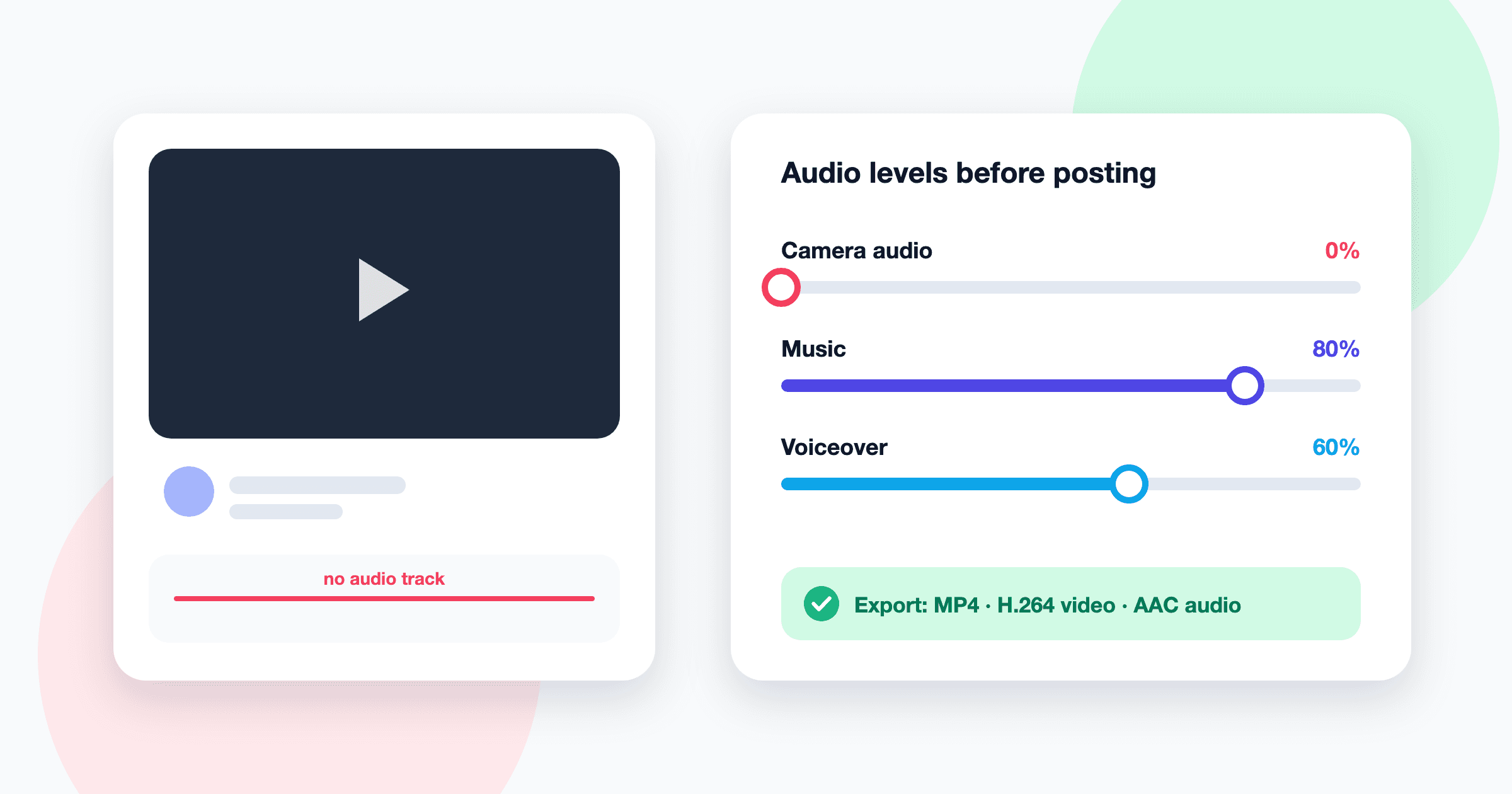
Few things are as deflating as publishing a Reel you labored over, only to discover that it plays in complete silence. Because the failure is invisible until someone actually listens, it can go unnoticed for hours while views quietly stall.
The reassuring news is that silent Reels rarely stem from anything mysterious. The audio almost always vanishes at one of a handful of predictable points: inside Instagram's own editor, in the source clip, during export from a third-party app, or somewhere in the upload itself. Below, each culprit is examined in turn, followed by a verification routine and a recovery plan.
If the problem is that you cannot hear other people's Reels, that is a playback issue on your device rather than a problem with your post, and it is covered separately in why you can't hear Instagram Reels.
First, pin down when the sound disappeared
Establish exactly when the silence began, because each moment points to a different cause.
- Silent while editing: the problem lives in the source clip or in the editor's volume settings.
- Fine in the editor, silent after posting: suspect the upload, a draft that lost its audio, or an export format Instagram struggled to process.
- Played normally for days, then went silent: this is almost always a licensing decision made after publication, not a technical fault.
When a track is removed or restricted after publication, Instagram typically mutes the Reel or flags the audio as unavailable. For that scenario, see how to fix "audio not available" on Instagram Reels, which covers rights removals and regional restrictions in depth.
Culprit one: volume settings inside Instagram's editor
The single most common reason a Reel posts silent is also the most mundane. Instagram's editor maintains separate volume levels for different audio layers, and any of them can be dragged to zero without you noticing.
Original audio and music sliders
When you add a track from Instagram's library, the editor generally exposes a volume control for the camera's original audio and another for the music. These controls are usually found by tapping an option named something like "Audio" or "Volume" in the editing screen. If both sliders sit at zero, the Reel is silent no matter how good your footage sounds.
Muting camera audio when adding music
A counterintuitive idiosyncrasy of many editors is that adding a song can attenuate or mute the original clip's sound, on the assumption that you want the music to dominate. Creators who film a talking segment and then layer in a background track are frequently caught out: the music plays, but their narration has inadvertently disappeared. After adding any track, reopen the volume controls and confirm that the original audio is still at a sensible level.
Voiceover levels
Voiceovers recorded inside Instagram typically get their own layer and their own level. A voiceover recorded quietly, or one whose volume was nudged down while you balanced it against music, can become effectively inaudible on phone speakers. Keep speech clearly louder than any background track.
Culprit two: the source clip never had usable audio
Sometimes the editor is blameless because there was never any usable sound. Clips imported from your camera roll can arrive with a missing or unreadable audio track.
Screen recordings
Screen recordings are a notorious source of silent footage. On iPhone, the built-in screen recorder generally captures app audio, but whether it also records your voice depends on whether the microphone was switched on before you started, usually via a long-press on the screen recording control. Some apps also block their audio from being captured at all, and Android recorders vary by manufacturer in whether they capture internal sound, microphone, or both. If you intended to narrate a screen recording, play it back in your gallery before importing it anywhere.
Unusual codecs and variable frame rates
Footage from drones, action cameras, older Android devices, or desktop capture software sometimes uses audio codecs that Instagram does not handle gracefully. Variable frame rate video, common in phone and screen recordings, can also confuse processing and occasionally produces audio that drifts out of sync or drops out entirely.
A quick check
Open the original clip in your phone's default photo or gallery app with the ringer on and volume up. If it is silent there, no amount of editing inside Instagram will conjure sound out of it.
Culprit three: exports from CapCut, InShot, Premiere and similar apps
Editing in a dedicated app offers finer control, but it introduces another stage where audio can be lost.
Audio disabled at export
Some editors let you mute the entire project, a single clip, or the extracted audio track, and those settings persist into the export. Desktop editors such as Premiere Pro also allow you to exclude audio from the export altogether. If your exported file is silent when played on its own, the problem happened before Instagram ever saw it.
Unsupported or awkward formats
Exports in less common containers, unusual sample rates, or uncompressed and multichannel audio may not survive Instagram's processing intact. The safest choice is almost universally supported: an MP4 file with H.264 video and AAC audio, in stereo, at a standard sample rate such as 44.1 kHz or 48 kHz. Desktop software may require you to choose such a preset deliberately.
For a clearer picture of what codecs, sample rates, and bitrates actually mean, see audio formats and bitrates explained. If you are building Reels around an Instagram sound in an external editor, adding Instagram audio to CapCut and InShot walks through that workflow end to end.
Culprit four: drafts, uploads, and account limits
Drafts that lose their audio
Drafts are convenient, but they are not always as durable as they appear. Creators occasionally report that a saved draft reopens with its music missing or its original audio reset, particularly after an app update or when the source clip has been deleted from the camera roll. Treat any draft as provisional: when you reopen one, replay it with sound before publishing.
Flaky connections during upload
A Reel uploaded over an unstable connection can, on occasion, finish processing with incomplete audio, or with sound that plays for a few seconds and then drops. If you are switching between Wi-Fi and mobile data, or posting from somewhere with a weak signal, wait until you have a steady connection before tapping share.
Business and brand account music limits
Business and some brand accounts usually have access to a narrower music library than personal or creator accounts, reflecting the different commercial licensing involved. A track used freely on a personal account may become unavailable once the account type changes. If you manage a business profile, favor the sounds Instagram explicitly offers to your account, or use original audio you own.
How to verify audio before you post
Catching silence before publication is far less painful than repairing it afterward.
- Preview with sound on. Check that your phone is not on silent, raise the media volume, and play the full preview in Instagram's final screen before sharing.
- Listen for every layer. Confirm you can hear the music, your original audio, and any voiceover at the levels you intended.
- Test the exported file separately. If you edited elsewhere, play the exported MP4 in your gallery before importing it.
- Use headphones and speakers. Quiet voiceovers that sound fine in earbuds can vanish on a phone speaker.
- Check on a second device. After posting, open the Reel on another phone, or ask a friend to. This reconciles what you hear with what your audience hears.
Pre-publish checklist
| Check | What to confirm | | --- | --- | | Source clip | Plays with sound in your gallery app | | Editor sliders | Original audio and music both above zero | | Voiceover | Clearly louder than background music | | Export settings | Audio enabled, MP4 with H.264 and AAC | | Draft | Replayed with sound after reopening | | Connection | Stable before you tap share | | Account type | Chosen track is available to your account |
How to recover a Reel that posted silent
Edit or replace the audio, if available
Instagram has, at various times, allowed creators to adjust or replace the audio on a published Reel, particularly when a track has been removed for licensing reasons. Open the Reel, tap the three-dot menu, and look for an option named something like "Edit" or "Replace audio." If it exists for your post, this is the least disruptive fix because your views, comments, and link remain intact.
Re-upload a corrected version
If editing is not possible, fix the underlying cause, whether that means raising a slider, re-exporting, or re-recording, and then upload the Reel again.
Archive versus delete
When you replace a silent Reel, archiving the original is usually wiser than deleting it. Archiving hides the post from your profile while keeping its data recoverable, so you can restore it later if you change your mind. Deleting is permanent.
Keep a reference copy of your original sound
For creators who record distinctive voiceovers or original audio, it pays to keep a backup outside the app. The raw file on your phone is ideal, but if you no longer have it and the Reel is public, you can use SaveInstAudio's Instagram Reels to MP3 converter to save the audio from a public post as an MP3 reference copy. Note that this only works while the post still has sound: if Instagram has muted a Reel, there is no audio left to extract.
Frequently asked questions
Why does my Instagram Reel have sound in the editor but not after posting?
The most likely causes are a failed or interrupted upload, an export format Instagram processed poorly, or a draft that lost its audio before publication. Re-export as an MP4 with H.264 video and AAC audio and upload again on a stable connection.
Why did my music play but my voice disappear on my Reel?
Adding music in Instagram's editor can lower or mute the original clip's audio. Reopen the volume controls and raise the original audio level so it sits clearly above the music. The same applies to voiceovers recorded as a separate layer.
Why is my iPhone screen recording silent on Instagram?
The screen recording itself probably captured no sound. Your voice is only recorded if the microphone was enabled before you started, and some apps prevent their audio from being captured. Play the recording in the Photos app first; if it is silent there, you will need to record it again.
Why did my Reel go silent weeks after I posted it?
A Reel that played normally and later went silent has almost certainly been affected by a licensing change or a rights claim, not a technical fault. Instagram may mute the track or mark it unavailable, and the steps for that situation are covered in the guide to fixing audio unavailable messages.